TDM Digital Signage is a digital signage management platform that organizations use to create, publish, schedule, and manage content on their screens. Everything is managed from a web browser, so one team can control a single display or an entire network remotely from a single location.
How does TDM Signage work?
The platform works in three steps: connecting screens, creating content, and publishing and managing it. Because all three take place in the same browser-based platform, one team can handle screens, content, and schedules without moving between different tools. The infographic below summarizes this workflow before each step is explained in more detail.
Step 1: Connect your screens
The first step is to connect each display to the platform. Screens that run Samsung Tizen, LG webOS, Windows, or Android can connect directly through the TDM app, so these models do not need any additional hardware.
To connect a screen, the user installs the TDM app on the display, or connects a TDM Player through HDMI, and then registers the device in the account. The best news is that the whole process takes a few minutes.
Displays that do not run a supported operating system can still be used. In that case, the TDM Player acts as an external playback device that connects through HDMI and gives the screen full access to the platform. The video below shows each step:
Once a screen is connected, it appears in the dashboard, where users can check its status, push content updates, and make changes remotely. Because the way displays are managed does not change with their number, the process is the same for one screen or a large network.
Step 2: Create your digital signage content
After the screens are connected, the next step is to create the content they will show. TDM Signage includes a visual editor where users can start from one of more than 200 ready-made templates or build a layout from scratch.
The editor works with drag and drop, which allows users to add elements, adjust layouts, and preview the result before it goes live. As a result, no design skills are needed to produce professional-looking layouts. Additionally, users can also import demo templates and adapt them to speed up the process. Check out how in the video tutorial below:
The editor also supports a wide range of content types; these include images, videos (including YouTube), websites, PowerPoint presentations, QR codes, text blocks, slideshows, and widgets.
In addition to uploaded files, content can come from connected sources such as weather updates, news feeds, social media, and business data. These sources refresh automatically, so the information on screen stays current without manual input. Once a layout is ready, it is added to a playlist, which is covered in the next step.
Step 3: Publish, schedule, and manage your content
The final step is to send the content to the right screens at the right time. Users can assign content to a single display or to many displays at once, and playlists help keep this process organized.
A playlist is a group of content items in a set order. The user decides what goes into it, how long each item plays, and which screens receive it, so a single change to the playlist updates every display it is assigned to.
Scheduling then controls when content plays. Time-based schedules show a specific message during set hours, while recurring schedules repeat content daily or weekly. All of these changes are made remotely from any browser, which means no one needs to physically visit the displays.
For larger networks, displays can be organized into screen groups by location, department, or content zone. Schedules and content can then be assigned to a whole group at once, which keeps every location consistent while still leaving room for location-specific content.
What are the main TDM Signage features?
The solution’s features cover the everyday work of running a digital signage network: managing the displays themselves, creating content, deciding when that content plays, controlling who can make changes, and, in offices, showing booking information outside meeting rooms.
Together, these TDM Signage features allow an organization to run its entire display network from one platform, although some of them depend on the license plan. The table below gives a quick overview of each feature and its typical use, and the sections that follow explain them one by one, starting with screen and player management.
|
Feature |
What it does |
More details |
|
Centralized screen and player management |
Shows the status of every display and player in one dashboard and lets users group and update them remotely |
|
|
Content creation with TDM Canvas and templates |
Builds layouts with drag and drop, starting from 200+ templates or a blank page |
|
|
Playlists, scheduling, and automated content |
Plays content in a set order, at set times, or from live sources that refresh on their own |
|
|
User roles and access management |
Assigns each user one of four roles: Admin, Player Manager, Content Manager, or Content Editor |
|
|
Meeting room displays and booking information |
Shows room availability from supported calendars on displays outside each room |
|
The TDM Signage dashboard gives a central view of the whole screen network, so users can see which players are online, check content activity, and spot issues quickly. Each player shows a connection status, such as online or critical, which helps teams find problems without visiting the display in person.
To keep larger networks manageable, displays can be grouped by location, department, or use case. Users can then push updates to a whole group at once and organize their devices directly from the browser.
Because the same dashboard works for a handful of screens or a network spread across many sites, teams spend less time traveling to locations or checking displays by hand. At the same time, they can confirm that each display is working and showing the right content.
Content creation with TDM Canvas and templates
TDM Canvas is the visual content editor inside the CMS, and it is designed for users who have no design or technical background. Users can choose from more than 200 templates, upload their own images and videos, and arrange their layouts with drag and drop.
Beyond images and video, the editor supports elements such as text blocks, shapes, QR codes, slideshows, and Power BI dashboards. Content can be designed in landscape or portrait orientation, and our team recommends 1920 × 1080 pixels for Full HD screens and 3840 × 2160 pixels for 4K displays.
Templates are what make content creation accessible to non-designers. Instead of starting from a blank page, a user selects a template, adds their own text and images, and adjusts the layout. Organizations on the Small Business plan or higher can also upload their own fonts so that every display matches their brand. Here’s how:
Playlists, scheduling, and automated content
This platform offers three ways to keep screens current, and most organizations combine them:
- Manual updates, where a user edits content and publishes it, so the change reaches the displays right away.
- Scheduled playback, where content plays at set times or dates, or repeats on a recurring schedule.
- Automatically updated content, where supported integrations such as weather or news feeds refresh on their own.
Playlists connect these three methods and besides placing content in a set order, users can organize playlists into folders and add transitions between pages. Playlists can also be filled automatically based on rules.
With schedules, organizations can control content and more. There are two types: a content schedule, which plays selected content during set periods, and a power schedule, which puts a display into standby mode. Not every device supports being switched on or off remotely, so power schedules depend on the hardware. Here’s a quick tutorial on how to create a power schedule:
A restaurant, for example, can schedule its breakfast menu for the morning and its lunch deals for noon, while a live weather widget runs beside the menu all day. After closing time, a power schedule can then switch the displays to standby until the next morning.
User roles and access management
This digital signage platform uses role-based access control, which means each team member receives only the level of access their tasks require. TDM Signage has four roles, each with a different level of access:
|
Role |
Responsibilities |
|
Admin |
Full access, including users, screens, content, and account settings |
|
Player Manager |
Screens, players, and playback-related tasks |
|
Content Manager |
Creates, organizes, and publishes content and playlists |
|
Content Editor |
Creates and edits content items only |
Roles define what each person can do in general, while rights add control at the level of individual items. Each player can be given View, Edit, Manage, or Denied access per user or group, and separate rights can be set for playlists and playlist folders. As a result, a local team can manage only its own displays, while a central admin keeps oversight of the whole network.
On the Enterprise plan, users can also sign in through Single Sign-On with Microsoft Entra ID (Azure); follow this tutorial to set up SSO. This allows organizations to apply their existing login policies to TDM.
Meeting room displays and booking information
This solution includes a room booking feature that shows meeting room availability on displays placed outside each room. People can see at a glance whether a room is free, who has reserved it, and when it becomes available next.
To set it up, a user creates a room in the Rooms menu, connects it to a Microsoft 365 calendar or room resource, and then links a player to that room. The display can use one of the pre-defined room booking pages or a page built from scratch in the content editor.
For an interactive room booking setup, a compatible tablet or display with touch functionality is required, with optional LED support. Setting up room booking requires Content Manager access or higher, and it relies on the calendar integrations, which are available from the Small Business plan upward.
What integrations does TDM Signage support?
TDM Signage integrations connect screens to external apps, data sources, feeds, and web content, which allows displays to show information that changes over time instead of only files that were uploaded by hand.
This difference matters in daily use. An uploaded image or video stays the same until someone replaces it, whereas content from a connected source, such as a weather feed or a Power BI dashboard, can refresh on its own. The exact update behavior depends on the integration and how it is configured.
Moreover, the TDM Signage integrations can be added to layouts and playlists and scheduled in the same way as other content, although the options available depend on the license plan. The overview below shows the main integration categories.
|
Category |
TDM Signage integrations |
|
Microsoft |
SharePoint, Microsoft 365, Outlook, Power BI, PowerPoint, Microsoft Exchange |
|
Calendars and scheduling |
Outlook, Microsoft Exchange, Google Calendar, Zermelo |
|
Social media |
Facebook, Instagram, TikTok, LinkedIn |
|
Video |
YouTube, Vimeo |
|
News and feeds |
NU.nl, NOS, RSS feeds |
|
Weather |
Weather Radar, OpenWeather |
|
Transport |
NS Info |
|
Web and QR |
Web URL, QR Code |
|
Other |
Realworks, Single Sign-On (SSO), custom data source |
Microsoft integrations
This platform connects to several Microsoft services, including SharePoint, Microsoft 365, Outlook, Power BI, PowerPoint, and Microsoft Exchange. These integrations bring content that organizations already maintain onto their displays.
Power BI dashboards and reports can show live business data such as KPIs, PowerPoint presentations run directly on screens, and SharePoint content can support internal communications. Power BI and SharePoint are part of the Enterprise plan, while OneDrive is included in all plans.
Calendar and scheduling integrations
Calendar integrations connect TDM Signage to Outlook, Microsoft Exchange, and Google Calendar, so displays can show schedules, events, and meeting information from existing calendars. Here’s how:
For meeting rooms, the Office 365 and Exchange data sources can also link room resources, and Google Calendar can add other calendars the user has access to, so each room display shows real-time booking information. Schools can likewise use the Zermelo integration to show students their schedule changes.
Social media integrations
Social media integrations with Facebook, Instagram, TikTok, and LinkedIn let organizations show their own content on displays without copying posts by hand.
Facebook and Instagram data sources are linked to a company account and can show its username, messages, images, and videos, while TikTok can show messages and videos.
On the TDM YouTube channel, you can find different tutorials which show how to connect TikTok integration, a Facebook and Instagram data source, and even a LinkedIn one.
Video integrations
Video (YouTube and Vimeo) integrations allow organizations to show videos that are already hosted online. This is useful when a company already publishes product videos, tutorials, or brand films on these platforms, because the same videos can appear on displays without being downloaded and uploaded again. Videos stored as files can still be added through the media library, alongside images and other content.
News and feed integrations
News integrations add current headlines to screen layouts, which keeps waiting areas, receptions, and staff rooms informative. Users can choose from RSS feeds as well as Dutch news sources: NU.nl and NOS. The NOS data source can be filtered by news category, so a display shows only the topics that matter to its audience. RSS feeds make it possible to add other news sources.
Weather integrations
Weather integrations show current weather information on displays, which is useful in receptions, shops, hotels, and other places where visitors plan their day. There are two sources available, namely Weather Radar and OpenWeather.
TDM includes a default weather integration based on OpenWeather, which displays the weather for the chosen location. Because this data refreshes on its own, widgets can run alongside other content all day. Here’s how to set up a weather data source:
Transport integrations
The transport integration connects TDM Signage to NS, the Dutch national railway company. The NS data source shows real-time information about train arrivals, departures, and delays.
Organizations can use it to inform employees about upcoming trains, for example on a display near the office exit or in a staff canteen. Because the information updates automatically, people see current departure times without anyone having to check the timetable and update the display by hand.
Web and QR code integrations
Web and QR integrations connect displays to online content. With the Web URL option, a web page can be shown as part of a layout. The QR Code option works in the opposite direction: it places a scannable code on the display, which viewers can open on their phones to visit a page. QR codes are added as a standard element in the page editor. Check out how to add a QR code in the below video tutorial:
Other integrations: Realworks, SSO, and custom data sources
The remaining integrations serve specific needs. Realworks, an application mostly used by real estate agents, can show a real-time overview of homes for sale or rent. Single Sign-On (SSO) lets users log in with their Microsoft Entra ID account and is part of the Enterprise plan. Finally, the custom data source supports any RSS or XML feed accessible through HTTP or FTP with the Small Business plan and higher.
What screens and devices are compatible with TDM Signage?
This digital signage solution can run on displays in two ways: screens with a supported operating system run the TDM app natively, while other models connect through an external media player. The platform is hardware-agnostic; compatibility depends on the specific model, the plan, and the player type, which is why we advise confirming the details before buying hardware.
Which operating systems does TDM Signage support?
TDM Signage supports four operating systems, namely Samsung Tizen, LG webOS, Windows, and Android. Furthermore, the platform is compatible with Sony Bravia and Philips D-Line displays.
It’s important to note that the chosen plan affects which players can be used. For example, Android players work on all plans, while Windows PC players require the Small Business plan or higher. For model-specific requirements, the TDM knowledge base and the support team provide technical guidance.
When do you need TDM Player?
An external media player is needed when a screen has no compatible built-in operating system, and for this purpose, TDM offers its own player, the AAVH-X106MH. It runs Android 14 and connects to TVs, commercial displays, and projectors through HDMI. The TDM Player supports 4K 60p and HDR output as well as Power over Ethernet (PoE), and it can be supplied with TDM Signage pre-installed to speed up setup.
Can TDM Signage work with existing screens?
Existing commercial displays that run a supported operating system can use the TDM app directly, while screens without a supported system can connect through an external player via HDMI. Consumer TVs are a special case because they are not designed for continuous signage use, and compatibility is not guaranteed. For this reason, organizations should confirm compatibility with our team before choosing their setup.
Cloud vs. on-premise TDM Signage: Which setup is right for your organization?
This solution offers two deployment options, cloud-based and on-premise, and both use the same platform to manage displays and content. The main difference lies in where TDM is hosted and how players connect to it. For that reason, the right choice depends on an organization's hosting, network, and data control requirements rather than on its size.
Cloud-based TDM Signage
Cloud-based deployment is the default option, and the platform is accessed through a web browser. Subscriptions are managed online, and content is created and stored in the platform itself.
Because the platform is hosted by TDM, organizations do not need to install or maintain a local server. Instead, players connect to the environment over the internet to receive content updates.
More importantly, all services and data are hosted in the Netherlands. Also, data in transit and at rest is protected by industry-standard encryption.
Players also store content locally, which means they continue playing downloaded content if the connection drops for a short time. New updates and schedule changes, however, still need an active connection. Media can be stored in the built-in storage or linked from OneDrive, Dropbox, or Google Drive.
On-premise TDM Signage
It is also available as an on-premise installation with the Enterprise plan. This way, the platform is hosted on the organization's own servers and within its own infrastructure. The option is best suited for organizations that need to keep everything within their own network or want full control over where their data is stored.
The day-to-day work stays the same in both setups, since users still update content, schedule messages, and manage displays without being physically next to the screens. Please contact us for the latest network requirements for on-premise installations.
What industries and organizations use TDM Digital Signage?
Companies typically use digital signage for two purposes: informing people and promoting products or services, and TDM Digital Signage is built to support both. The software is used in a wide range of sectors, from retail, restaurants, and manufacturing to healthcare, schools, government, and public venues. While each sector uses the same platform features, it applies them in its own way, as the examples below show.
Retail, restaurants, and QSR
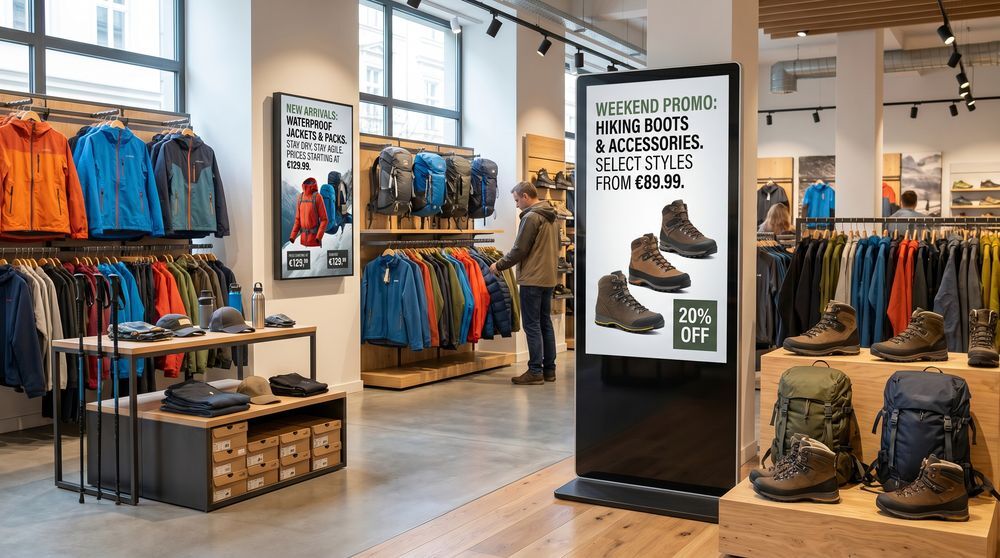
In retail, TDM Signage is mainly used for promotions, pricing, and product information. For example, window screens, checkout displays, and campaigns can be updated centrally across all stores at once.
For instance, restaurants use the platform for digital menu boards, daily specials, and staff communication. Furthermore, with scheduling, businesses can switch automatically between breakfast menus, lunch deals, and evening promotions.
And QSR owners can take advantage of quick-service applications such as drive-thru menus and order status screens. The displayed content can be distributed through the central management. Also, the scheduling features can replace printed menus and manual updates.
Offices, manufacturing, and corporate communications
In offices, TDM Signage supports internal communications by showing company news, announcements, and meeting room schedules, while Outlook and Microsoft 365 integrations add live calendar data to these displays.
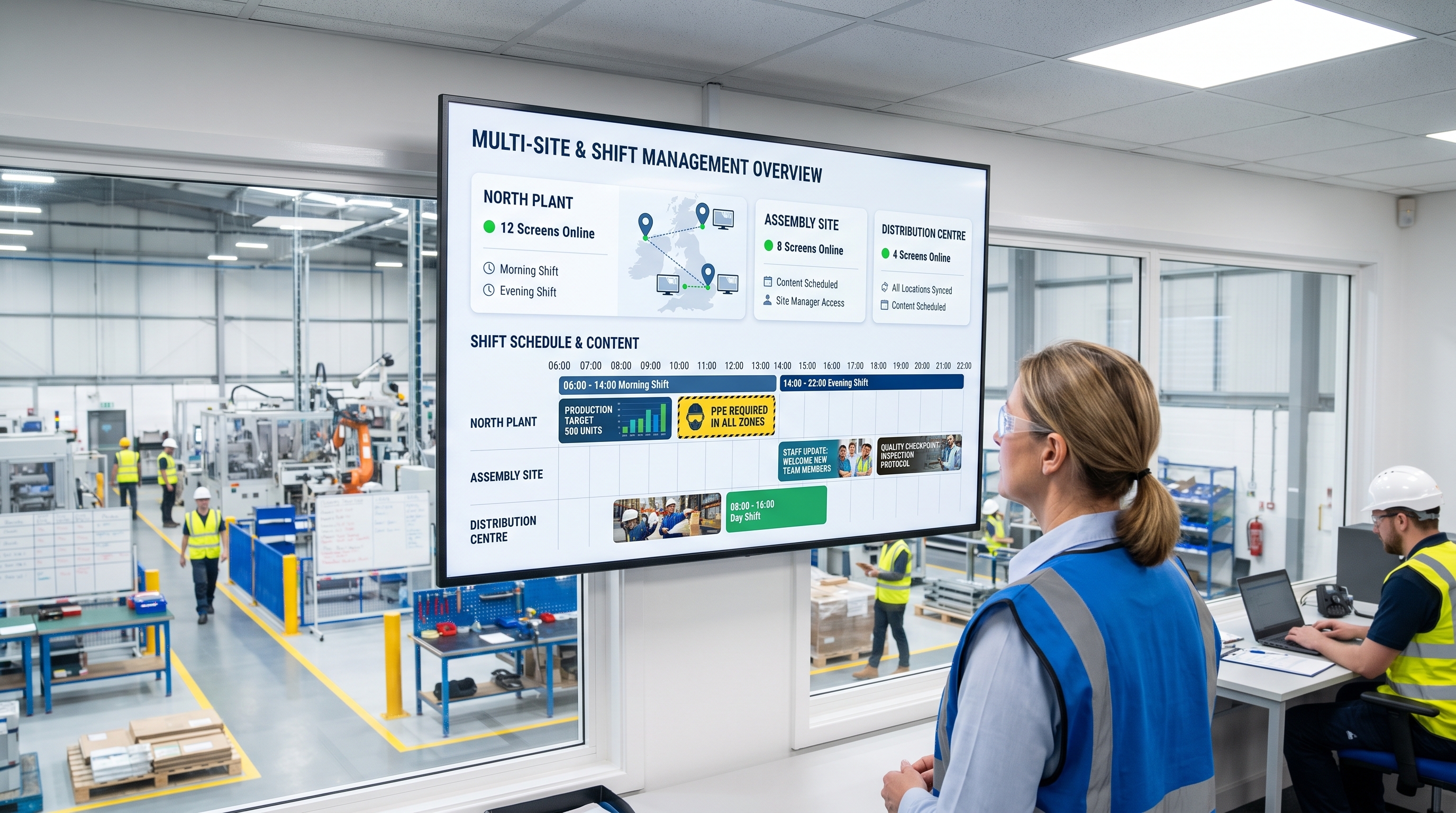
Manufacturing sites use displays in a more operational way, for production data, safety instructions, and shift information. TDM can also connect to data sources so that floor teams stay informed without manual work.
And Power BI dashboards can display KPIs and business performance data. In each case, one central platform manages the information, while role-based access allows each department to handle its own screens.
Healthcare and education
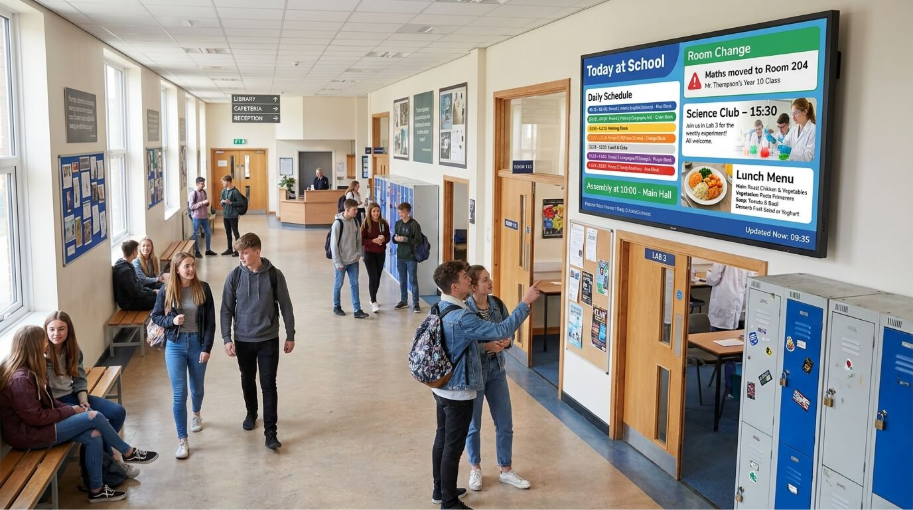
In healthcare, TDM Signage provides patients and visitors with wayfinding, wait times, and health information. In larger facilities, such as hospitals, role-based access allows different departments to manage their own screens.
In education, schools and universities use displays to share timetables, event announcements, and campus news. The scheduling features keep displays accurate, and the Zermelo integration supports school schedules specifically.
Hotels, hospitality, and public venues
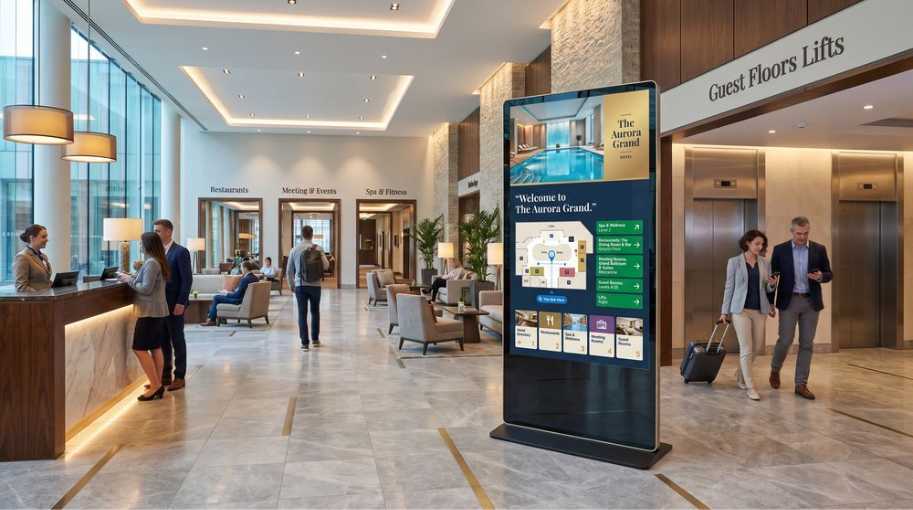
Hotels use TDM Signage to welcome guests and to share room information, event schedules, and directions. This content is updated centrally, which keeps every display consistent with the brand.
Public venues such as stadiums, museums, libraries, and gyms apply the same approach to event information, exhibits, class schedules, and visitor guidance. Content can also differ per screen or location, so a hotel lobby can show a welcome message while a conference room display shows the day's agenda, with both managed from the same account.
Government buildings, and other public spaces
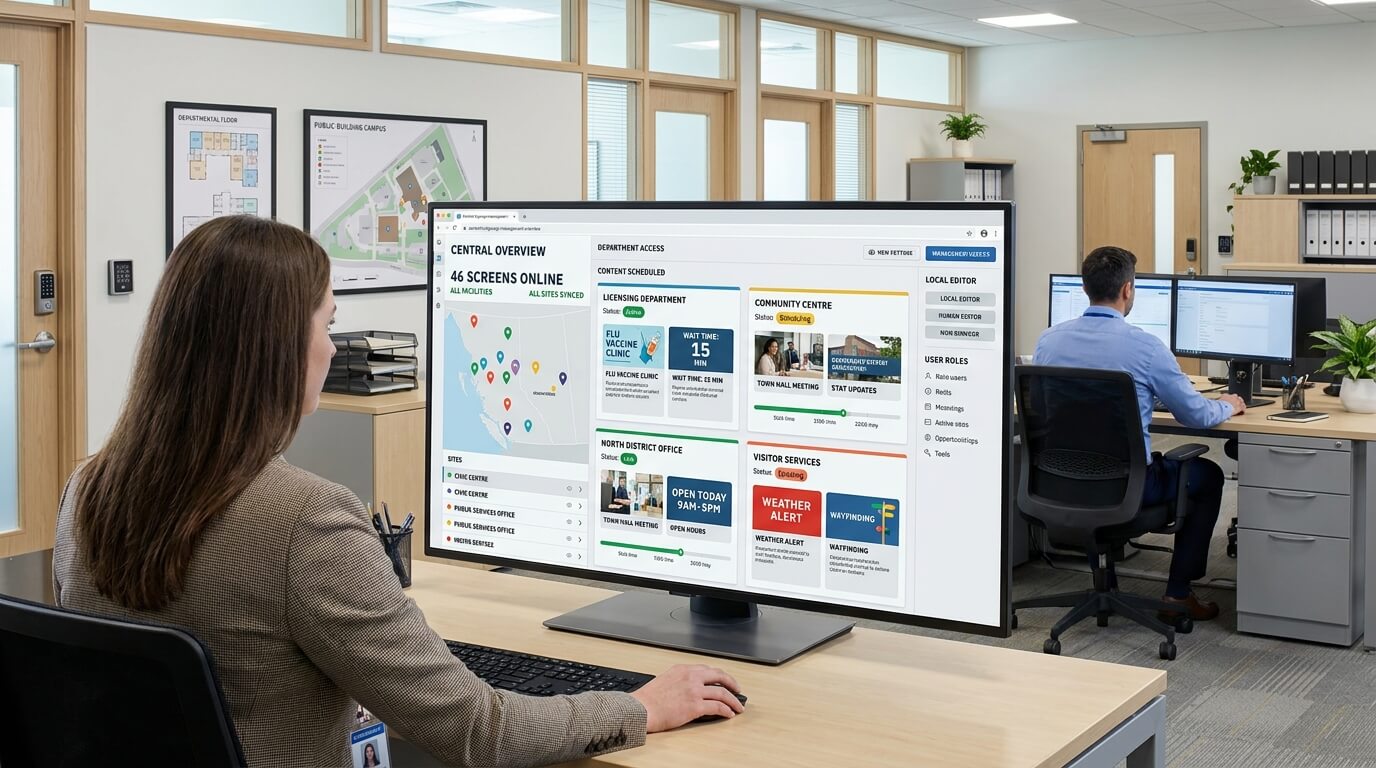
Government organizations use TDM Signage for public notices, wayfinding, queue displays, and emergency messages. To support deployment in secured, firewalled networks, the platform offers role-based access, SSO with Microsoft Entra ID, audit logging, and outbound-only communication from endpoint devices.
How much does TDM Signage cost?
TDM Signage uses a screen-based licensing model, which means each screen that runs the software needs one license. The price depends on the plan: Essential, Small Business, or Enterprise, where each higher plan adds features to the one below it. Because prices can change, readers should check the TDM pricing page for current rates.
TDM Signage pricing plans explained
The three plans differ in the features they include rather than in the number of displays they support. The table below summarizes the official plan comparison.
|
TDM Digital Signage plan |
Main features |
|
Essential |
Browser-based management, all design elements, news and weather, social media, 200+ templates, scheduling, Dropbox and OneDrive integration |
|
Small Business |
Everything in Essential, plus custom data sources, own fonts, calendars, Mail to Signage, user logbook, connected apps, and Windows player support |
|
Enterprise |
Everything in Small Business, plus Proof of Play with reports, interactive narrowcasting, Power BI, SharePoint, and Single Sign-On with Azure |
In practice, Essential covers the core needs of content creation and scheduling, while Small Business adds calendar and data integrations, along with support for Windows players. Enterprise then adds Proof of Play reporting, interactive signage, the Power BI and SharePoint integrations, and Single Sign-On.
What determines the cost of TDM Signage?
The total cost of TDM Signage depends on a few separate factors, which together make up the final price:
- Number of screens, since each screen or player needs its own license.
- Plan, which sets the price per screen.
- Contract term: there is a discount for a 3-year commitment and a larger one for a 5-year commitment.
- Optional hardware, such as the AAVH-X106MH player, which is priced separately from software licenses.
- Optional training, to support companies during onboarding.
Software and hardware are separate purchases, and displays that run Android, Tizen, or webOS may not need any external hardware at all. Support, on the other hand, is free for all customers, and organizations with many screens or a tailored deployment can contact TDM to discuss custom pricing.
Is there a TDM free trial?
Yes. TDM Signage offers a 30-day free trial, and no credit card is required to begin. During the trial period, companies can take advantage of two demo licenses with access to all features of the plan selected during setup. That allows organizations to test the platform fully before choosing a paid subscription. Those who prefer a guided introduction can also book a free demo with the TDM team.
How do you get started with TDM?
Most organizations start with the free trial or a demo because both make it possible to test the platform before buying. After that, the setup depends on the number of screens, the type of content, and the network environment. As a practical first step, the TDM team suggests deciding where each display will be placed, what it should show, and how often its content will change.
What do you need before setting up your first screen?
In order to set up a screen, organizations need:
- A compatible device.
- A supported operating system or a media player, such as the TDM Player.
- An internet connection at the screen, or a connection to the organization's own server in an on-premise setup.
- Access to the TDM Signage platform.
- A software license or trial access.
What support and training does TDM provide?
All our customers are eligible for TDM Support at no extra charge. It's available through four channels: a ticket system, the knowledge base, email, and phone. By contrast, TDM Training is optional and priced separately. Currently, we offer Basic Training online and an Advanced in-house workshop, each for up to five participants.